SwyxWare - File output
These instructions help you configure your SwyxWare phone system to work with TIM Plus. Contact your system maintainer if you are not familiar with the configuration of your PBX.
Support files
Ensure the following support files exist in the /config/ folder of the TIM Plus application:
SWYX V8.TDS
SWYX V8.TDT
Contents
Configuring the SMDR output
info
You may need to purchase a license to enable SMDR on this PBX. Please speak to your system maintainer if you are unsure.
Follow the steps below to configure the SwyxWare to output SMDR data to a file in a specific location:
- Log in to your SwyxWare Administration Tool.
- Right-click on the Swyx server you want to configure and click on the
Propertiesbutton. - In the Properties window, click on the
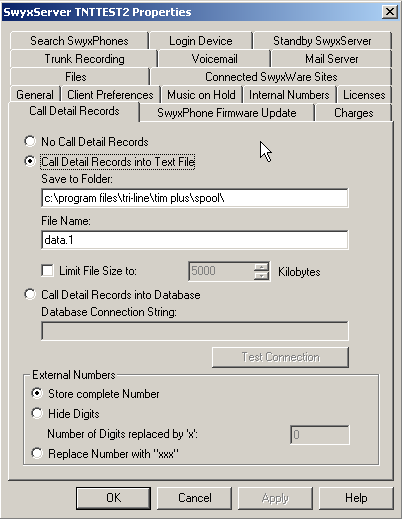
Call Detail Recordstab. - Click on the Call Detail Records into Text File radio button.
- In the Save to Folder field, enter program files\tri-line\tim plus\spool If you are using a mapped drive enter the driver letter.
- In the File Name field, enter data.{sitecode}, replacing {sitecode} with the ID of the site you are logging. To obtain the ID of a site, hover the mouse pointer over it on the
Directorypage in TIM Plus and it will be displayed as a tooltip. - Click on the
OKbutton and close the SwyxWare Administration Tool.
Here is an example of the SwyxWare Administration properties window:
Configuring TIM Plus
Follow the steps below to configure TIM Plus to receive SMDR data from your SwyxWare:
- Click on the
Directorytab. - If you don't have a site set up, press
Addand selectPBXfrom the drop-down menu. In the dialogue window, name your site and then selectAdd.
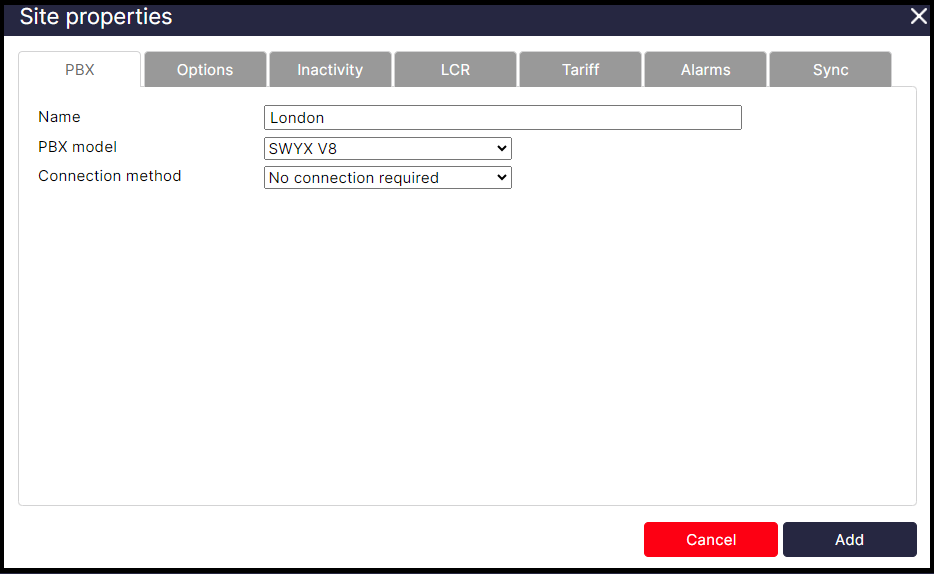
- In the Site Properties window, select SWYX V8 from the PBX model drop-down list.
- In the Connection method field, select No connection required from the drop-down list.
- Click on the
Savebutton to apply the settings.